
How can I check Excel formulas with AI?

Ask AI to explain the formula, compare it with your written business rule, and propose test cases. Then run those cases in a copy of the workbook and compare the outputs with answers you set independently. A confident explanation is useful; it is not proof that the formula is correct.
This is a practical way to review an operations tracker before it feeds a weekly sales report or another recurring decision. Start with one formula and a small, sanitised sample. You do not need to give an assistant the entire company workbook.
What does checking a formula actually mean?
A formula check compares what a spreadsheet calculates with what the business intends. There are two different problems: a formula can fail visibly, or it can calculate successfully while implementing the wrong rule. The second problem is easy to miss because the cell looks normal.
AI can help translate nested logic into plain language and suggest cases you overlooked. Your team still owns the rule: what counts as an exception, whether equality is included, and what a missing value should mean. If those decisions are unclear, a rewritten formula may simply hide the uncertainty.
Can a working formula give the wrong answer?
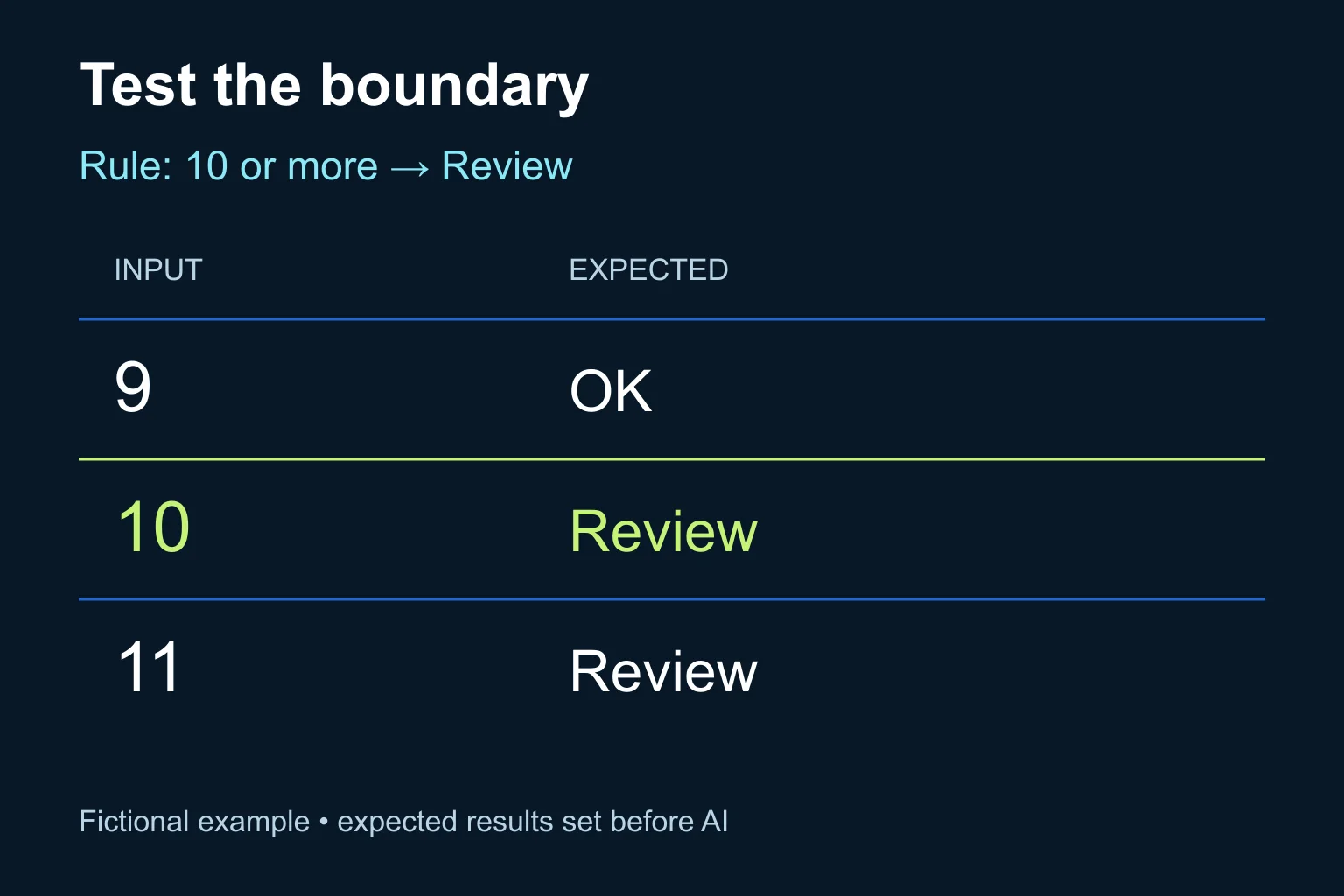
Yes. Consider this fictional operations example, not a customer result. A team wants to flag any record with 10 or more unresolved items for review. Column B contains a valid non-negative whole number.
The existing formula is:
=IF(B2>10,"Review","OK")
It returns “Review” for 11. It also returns “OK” for 10, which conflicts with “10 or more”. The proposed correction is:
=IF(B2>=10,"Review","OK")
The important change is the equality sign. Before asking AI for a fix, write the expected results yourself: 9 → OK, 10 → Review, 11 → Review. Those three cases distinguish the intended rule from the faulty version.
Do not stop there. If an empty cell should mean “Pending”, specify that separately. A candidate for this example is =IF(B2="","Pending",IF(B2>=10,"Review","OK")). This assumes the remaining inputs are valid numbers; it is not a complete defence against text, negative values or other invalid entries. Decide how to reject those inputs and test that behaviour too. Formula names and separators may differ in your Excel language and regional settings.
Which AI route should I use?
Choose the smallest route that fits the task.
- A one-off review in an approved AI assistant. Paste the formula, a description of its referenced columns, the written rule and fictional test rows. This is usually enough to investigate one expression without connecting a live data source. Remove customer names, identifiers and unnecessary business data.
- Copilot inside Excel. If your account has access, select the formula cell and ask Copilot to explain it. Microsoft documents explanations of selected cells and formula suggestions. Availability was checked on 30 October 2026. Microsoft’s formula guidance.
- Repeatable checks for a recurring workbook. Keep a small test sheet or a separate validation process with known inputs and expected outputs. If multiple files, changing schemas or scheduled imports make manual checks unreliable, consider a controlled automation. AI can help draft the implementation, but the check should compare results with explicit rules.
For Copilot, check your organisation’s eligible Microsoft 365/Copilot entitlement, app version and administrator settings before writing a team procedure. Use chat mode for an explanation-first review; Microsoft distinguishes it from edit mode, which can change workbook content. Do the exercise in a copy. Current Copilot in Excel requirements and modes.
A connector or MCP connection provides access to a source or tool; it does not create a recurring schedule. A bot or scheduled job needs a separate trigger, permissions and failure handling. For a single formula, that extra setup rarely helps.
How do I run a useful check in six steps?
- Make a working copy. Record the original formula and cell address. Keep a way to restore the workbook.
- Write the rule without spreadsheet syntax. For example: “10 or more unresolved items requires review; a missing count stays pending.” Have the process owner confirm it.
- Define expected outputs first. Include a typical value, the exact threshold, values just below and above it, zero and a blank. Add invalid input cases relevant to the actual file.
- Ask AI to explain, challenge and propose. Request assumptions and a minimal correction. Do not ask it to “make the spreadsheet correct” without defining correctness.
- Run the candidate in Excel. Compare actual and expected results row by row. Recalculate the copy and check that copied formulas point to the intended cells, especially where absolute references such as
$B$2are involved. - Review the impact before adopting it. Check downstream totals or flags that depend on this cell. Have a responsible person approve changes that affect payments, commitments or other consequential actions.
If a result differs, keep the failing row as a regression case: a known example that future versions must handle. Do not silently change the expected answer just to make the test pass.
What prompt can I copy?
Replace the sample with your own rule and anonymised columns. Keep expected answers grounded in the process, rather than letting AI invent both the test and its verdict.
Review this Excel formula. Do not modify a workbook.

Business rule:
10 or more unresolved items requires Review.
A missing count must remain Pending.
Valid counts are non-negative whole numbers.

Column B: unresolved item count
Current formula: =IF(B2>10,"Review","OK")

Independently expected results:
9 → OK
10 → Review
11 → Review
0 → OK
blank → Pending

1. Explain what the current formula actually does.
2. Identify conflicts with the rule and any missing assumptions.
3. Propose the smallest correction, stating its input assumptions.
4. Suggest additional tests for invalid inputs and copied references.
5. Separate predicted results from results actually run in Excel.
Do not claim the formula is verified. I will run the tests in a copy.
This prompt deliberately asks for a prediction. Unless a tool has actually executed the workbook, “tested successfully” would be an unsupported claim. Even when execution is available, inspect the inputs, formulas and outputs it used.
When is an existing tool enough, and when does Ergonya help?
An approved assistant or Copilot is enough when one person can inspect a small formula, run the test rows and confirm the result. Save the rule and examples alongside the workbook so a colleague can repeat the check.
A broader implementation becomes useful when many workbooks share the same rules, imports change columns, or a recurring report must stop when a validation fails. Coding tools such as Codex or Claude Code can assist a developer with a custom validator; they do not remove the need for agreed expected results, limited permissions and review before production use. Begin with a small pilot that reports exceptions before enabling any automatic updates.
If your problem begins with extracting information from invoices, handle that as a separate data extraction and verification step. A correct formula cannot rescue incorrect input.
Want a spreadsheet process your team can check and repeat? Talk to Ergonya about AI transformation. Bring one workbook structure, the rule it should apply and a few examples of the right answer. We can help decide whether a better prompt and a test sheet are enough, or whether the workflow needs a maintained automation.